Chat with your knowledge base
Your edge with AI is not the model you use. It is the context only you can give it. In Recall, the articles, videos, and podcasts you save become the context an AI reasons over, instead of whatever it happens to find on the open internet. Just as important are the notes you write and the thinking you capture: your own ideas, journals, and connections are often the most valuable context of all, and Recall treats them as first-class sources alongside everything you clip from the web. Managing that context well, an idea often called personal context management, is what turns a pile of saved content into answers you can actually trust. It is why chat sits at the heart of Recall.
That control is the real difference. When you ask a general assistant like ChatGPT a question and look at where its answer came from, it is often over-indexed on whatever is loudest online, frequently Reddit threads or a handful of high-traffic pages. You did not choose those sources, and you cannot always see why they were trusted. Recall hands that decision back to you. You decide what goes into your knowledge base, and you decide, for each question, whether an answer should come from your library, the web, or both. Answers stay grounded in what you chose, with the sources referenced so you can check them.
You do not have to take our word for how well this works. Tiago Forte, widely regarded as the godfather of the “second brain,” had his team spend three weeks running their real work through Recall and came away describing the same principle. You can read what they found, and watch his walkthrough of personal context management, in How Tiago Forte’s team tests Recall. For a book-length example, see how author Fernand Schroell used chat to find who disagreed with each of his theses and to fact-check his finished manuscript, in how to write a book with AI.
Watch a short walkthrough of how to use chat in Recall:
Getting started
- Add content so you have something to chat with. See Add content.
- Open chat by clicking this icon
 in the left panel of the web app.
 - Pick your source. Choose Recall, Web, or Recall + Web.
- Add context with
@to focus the answer on specific cards, tags, or folders when it helps. - Upload an image, document, or other file if the answer depends on something that is not in your knowledge base yet.
- Ask your question, then save useful answers to your notebook.
There are three ways to chat in Recall, depending on how much you want an answer to draw from.
- Single card chat: Every card has its own Chat tab for a focused conversation with one article, video, podcast, or PDF. This is the fastest way to dig into a single source: summarize it, pull out quotes, or ask follow-up questions without anything else getting in the way. See Interact with content.
- Global chat: Opened from the chat icon, global chat draws on your entire knowledge base at once. Because it can see everything you have saved, it can connect ideas across sources you saved weeks or months apart. This is the most powerful mode for research, synthesis, and recommendations, and it is what the rest of this page focuses on.
- Browser extension chat: The browser extension lets you chat while you browse, and it is not limited to the page you are on. Most people do not realize this: the extension can reach your entire knowledge base, so you can ask questions against everything you have saved without leaving the site you are reading.
The chat interface
Once you open global chat, these are the controls you will use. Each one is explained in detail below, in the same order.
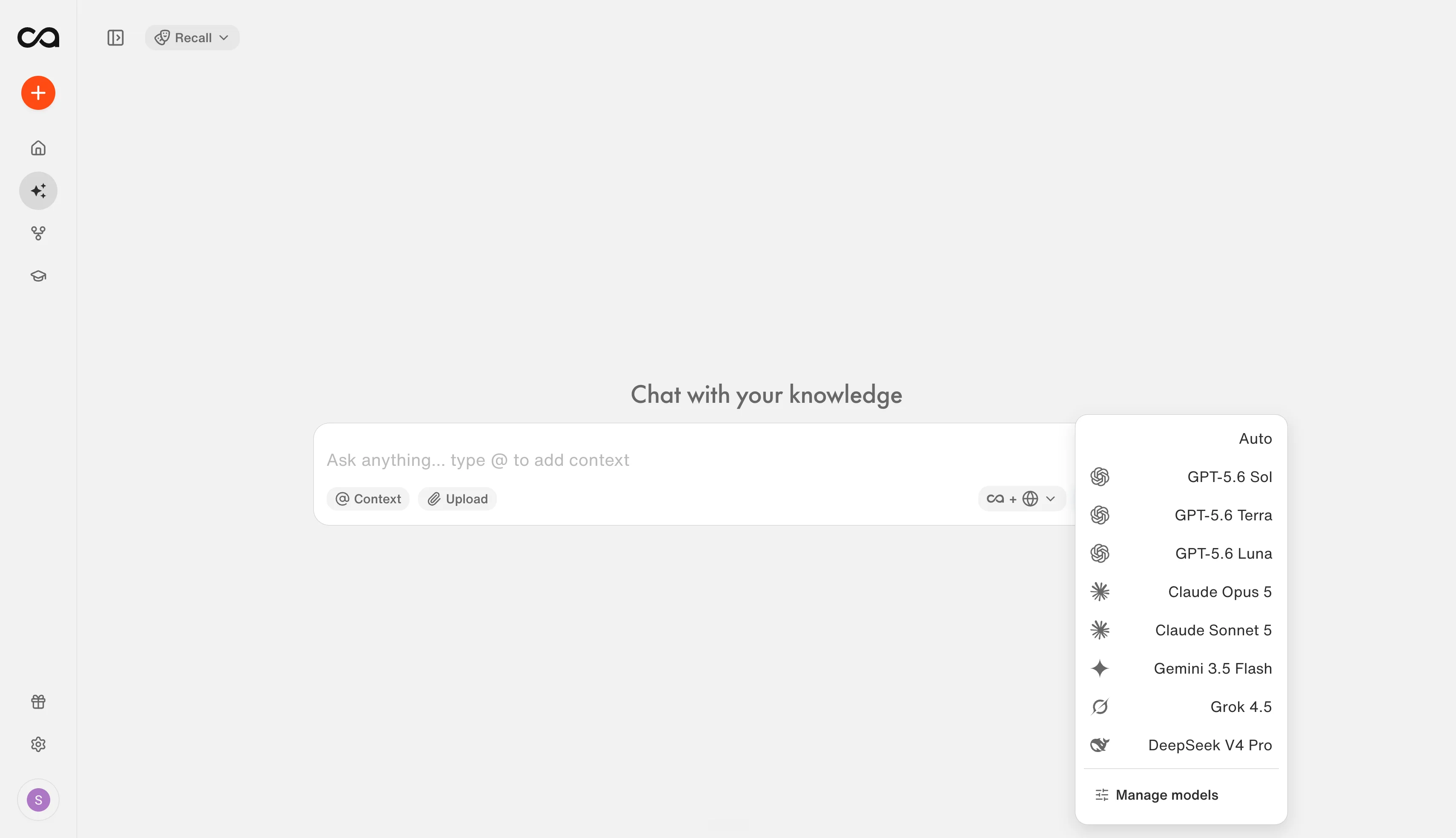
| Control | What it does |
|---|---|
| Source selector | Choose where the answer can draw from: Recall, Web, or Recall + Web. See source selector. |
| @ Context | Pin specific saved cards, tags, or folders so chat focuses on them. See @ Context. |
| Upload | Attach images, documents, or other files to the current message. See upload. |
| Personas (top left, shown as Recall when none is active) | Apply a saved set of instructions that controls tone, role, and output style. See personas. |
| Model selector | Choose Auto or a specific AI model (Max plan). See model selector. |
Source selector
The source selector controls where Recall is allowed to look for an answer, and it is the most important choice you make in a chat. It decides whether you get a grounded answer from your own library, a fresh answer from the web, or a blend of both. This is the control a general chatbot does not give you.
| Scope | Where it looks | Best for |
|---|---|---|
| Recall | Your saved knowledge base only | Grounded answers from sources you trust, private notes, and anything where you do not want the open internet involved |
| Recall + Web | Your knowledge base first, then the web to fill gaps | Combining what you have saved with the latest information, or filling in details your library does not cover |
| Web | The internet only, skipping your knowledge base | Fresh, current information that is not in your library yet, such as breaking news or brand-new releases |
Here is how the same underlying question changes depending on the scope you pick.
- Recall: “Summarize what my saved articles say about the Mediterranean diet.” Recall answers only from what you saved, and cites those cards.
- Recall + Web: “Compare what I’ve saved about the Mediterranean diet with the latest research.” Recall starts with your sources, then goes wider to add current findings.
- Web: “What are the latest headlines on diet research this month?” Recall skips your library and searches the internet.
@ Context
By default, global chat can draw on everything you have saved. When you want a more focused answer, use @ Context to point chat at specific material.
- Type
@or click @ Context, then search for what you want to focus on. - @ a card to chat with a single note, article, video, or PDF.
- @ a tag or folder to chat with everything in that group.
This is where good organization pays off. Tags are the most powerful way to scope a chat, because a single tag can gather related content you saved across weeks or months into one focused context. If your knowledge base is well tagged, you can point chat at exactly the right slice of it in one step, for example everything tagged marketing or health/sleep. If you have not organized your content yet, see Organize content to set up tags and nested tags first.
Pinned context appears above the input until you remove it, so you always know what the current answer is scoped to.
Upload
Use Upload to attach an image, document, or other file directly to your message when the answer depends on something that is not in your knowledge base yet. For example, drop in a screenshot to ask what it shows, a PDF to summarize, or a spreadsheet to analyze. Uploaded files apply to the current conversation only and are not added to your library, so save anything you want to keep to a card.
Personas
A persona is a saved set of instructions that controls tone, role, and output style before Recall generates an answer, so you do not have to re-explain how you want responses written every time. Select one from the persona menu in the top left, which shows Recall when none is active. A persona changes how an answer is written, not where the information comes from, so it works with any source scope. See Chat Personas to create and manage them.
Model selector
Choose Auto to let Recall pick the best model for your task, or select a specific model yourself. Selecting a model is a Max plan feature. See Choosing an AI Model for detailed guidance on which model suits research, writing, reasoning, recommendations, and long documents.
Every answer is cited, and every answer can compound
The biggest practical difference from a general chatbot is that Recall shows its work and lets that work build on itself.
- Every source is cited. Each claim in an answer links back to the card it came from. When an answer draws on a video or podcast, you also get the exact timestamp, and you can play that moment inside Recall without leaving the site or breaking your flow.
- See all sources for the chat. At the end of a conversation, open Sources to see every card the chat cited in one place, so you can review the evidence or dig deeper into any of them.
- Follow the suggested questions. Recall proposes follow-up questions so you can keep exploring a topic without having to think of the next prompt yourself.
- Save the answer back into your knowledge base. Add any answer to your notebook and it becomes its own card, which is then searchable, linkable, and available as context for future chats. Your knowledge base gets richer every time you use it, so chat becomes a loop that compounds instead of a set of throwaway conversations.
What you can do with chat
Here are the most common ways people use global chat, with example prompts you can adapt.
Summarize and synthesize
Turn long or scattered material into something you can act on.
- “Give me a one-page summary of everything I saved from this week.”
- “Pull the key takeaways from this podcast and list any action items.”
- “Combine my notes on this project into a clear brief.”
Learn more in AI notes.
Research across everything you have saved
Pull together what your sources say on a topic, even when they were saved months apart.
- “Summarize what my saved podcasts say about creatine timing and dosage.”
- “What are the main arguments for and against remote work across my saved articles?”
- “Across everything I’ve saved on the Mediterranean diet, what do the sources agree and disagree on?”
Learn more in AI for writing and research and AI for research.
Get recommendations from your library
Recall is great at surfacing what to read, watch, or revisit next, based on what you already have.
- “Based on my saved content, what should I read next to go deeper on behavioral economics?”
- “Which of my saved talks best cover getting started with strength training?”
- “Recommend three saved articles that challenge my current view on productivity.”
For which model gives the best recommendations, see Choosing an AI Model. For an example, see how people use Recall for reading.
Write and draft from your sources
Use your knowledge base as the raw material for new writing.
- “Draft a blog post outline using my saved research on sleep.”
- “Write a LinkedIn post based on the three articles I tagged ‘AI strategy’.”
- “Turn my meeting notes into a follow-up email.”
To control tone and format, pair chat with a Chat Persona. Learn more in AI for writing and research and AI for writing.
Talk to your own knowledge
Add your journals, health records, or project notes and you can query your own history.
- “What did I write about my goals for this quarter?”
- “Summarize how my training has changed over the last three months from my logs.”
Learn from experts you trust
Import content from people whose thinking you value, then have a conversation with it.
- “What does Lex Fridman’s podcast library say about the future of AI safety?”
- “Compare how my saved Huberman episodes and saved articles approach morning routines.”
Learn more in chatting with experts.
Go deeper
This deep dive covers everything you need to get the most out of chat.
- Chat Personas shows how to save instructions that control tone, role, and output style across conversations.
- Choosing an AI Model helps Max plan users pick the right model for research, writing, reasoning, judgment, recommendations, and long-document work.
Stay tuned for more. You can request features or share feedback here.
Frequently asked questions
Understanding chat
How is Recall chat different from ChatGPT or other AI chatbots?
General chatbots answer from the open internet, and you cannot control or always see which sources they used. Recall chat answers from the knowledge base you built, and it shows the sources behind each answer so you can verify them. You also choose, for each question, whether to draw from your library, the web, or both. In short, Recall gives you control over the context an answer is built on.
Does chat use the internet or only my saved content?
That is up to you. By default, chat answers from your saved content only (the Recall scope). Switch the source selector to Recall + Web to combine your library with the web, or Web to search the internet only.
What is the difference between single card, global, and browser extension chat?
Single card chat (the Chat tab on a card) talks to one source. Global chat (the chat icon) talks to your entire knowledge base at once. Browser extension chat lets you chat while you browse and can also reach your whole knowledge base, not just the page you are on.
Trust and accuracy
Can I trust Recall's chat?
Recall is designed to keep answers grounded in your sources rather than inventing them. When you use the Recall scope, answers come from the content you saved and reference the cards they came from, so you can click through and confirm every claim. As with any AI, it is good practice to verify important details against the original source, which Recall makes easy by linking back to it. For the most careful, well-verified answers, the model you choose also matters.
How does chat cite its sources?
When chat answers from your knowledge base, it references the cards the answer came from. You can click through to the original video, podcast, article, PDF, or note to verify the detail. If you want every claim traced back to a source, use a research-focused Chat Persona that always cites.
Does my content leave my knowledge base when I chat?
When you use the Recall scope, chat works within your own library. When you choose Recall + Web or Web, your question is also used to search the internet. Uploaded files apply only to the current conversation and are not added to your library.
Plans and models
What AI models are available in Recall chat?
Recall gives you access to frontier models from OpenAI, Anthropic, Google, xAI, and DeepSeek: GPT-6 Sol and Luna, Claude Opus 5.5 and Sonnet 5.5, Gemini 3.8 Flash, Grok 4.7, and DeepSeek V4 Pro, plus Auto, which picks the best model for your task. Earlier versions such as GPT-5.6 and Claude Opus 4.8 stay available too. On the Plus plan, Recall selects the model automatically. Choosing a specific model is a Max plan feature. See Choosing an AI Model.
Which model should I use?
On the Plus plan, Recall picks the best model automatically. On the Max plan, you can choose a specific model for a task. See Choosing an AI Model for detailed guidance on research, writing, reasoning, recommendations, and long documents.
Using chat
Can I chat with just one document instead of my whole library?
Yes. Use @ Context to pin a single card, or open the Chat tab directly on any card for a focused single-card conversation. See Interact with content.
Can the browser extension chat with my whole knowledge base?
Yes. The extension is not limited to the page you are on. It can reach your entire knowledge base, so you can ask questions against everything you have saved while you browse.
Can I upload a file or image to chat?
Yes. Use Upload to attach an image, document, or other file to your message. Uploaded files apply to the current conversation only and are not added to your library.
Why are my answers not what I expected?
The most common reasons are the source scope and the available content. Make sure the source selector is set correctly, that you have saved enough relevant content, and that you have used @ Context if you meant to focus on specific cards or tags. A clear, specific question also produces better answers.